Build playlists and folders
You will: create an ordinary playlist and a folder, add tracks, and reorder them.
CueRithm has three kinds of playlist item: Playlist (you choose the tracks), Folder (a container) and Smart playlist (rules choose the tracks, see Build a smart playlist). Playlists live inside the library. Audio files are never touched, and removing a playlist never deletes music.
1. Create a playlist
Click the + beside PLAYLISTS in the sidebar. The editor asks for a name, a type and a parent folder.
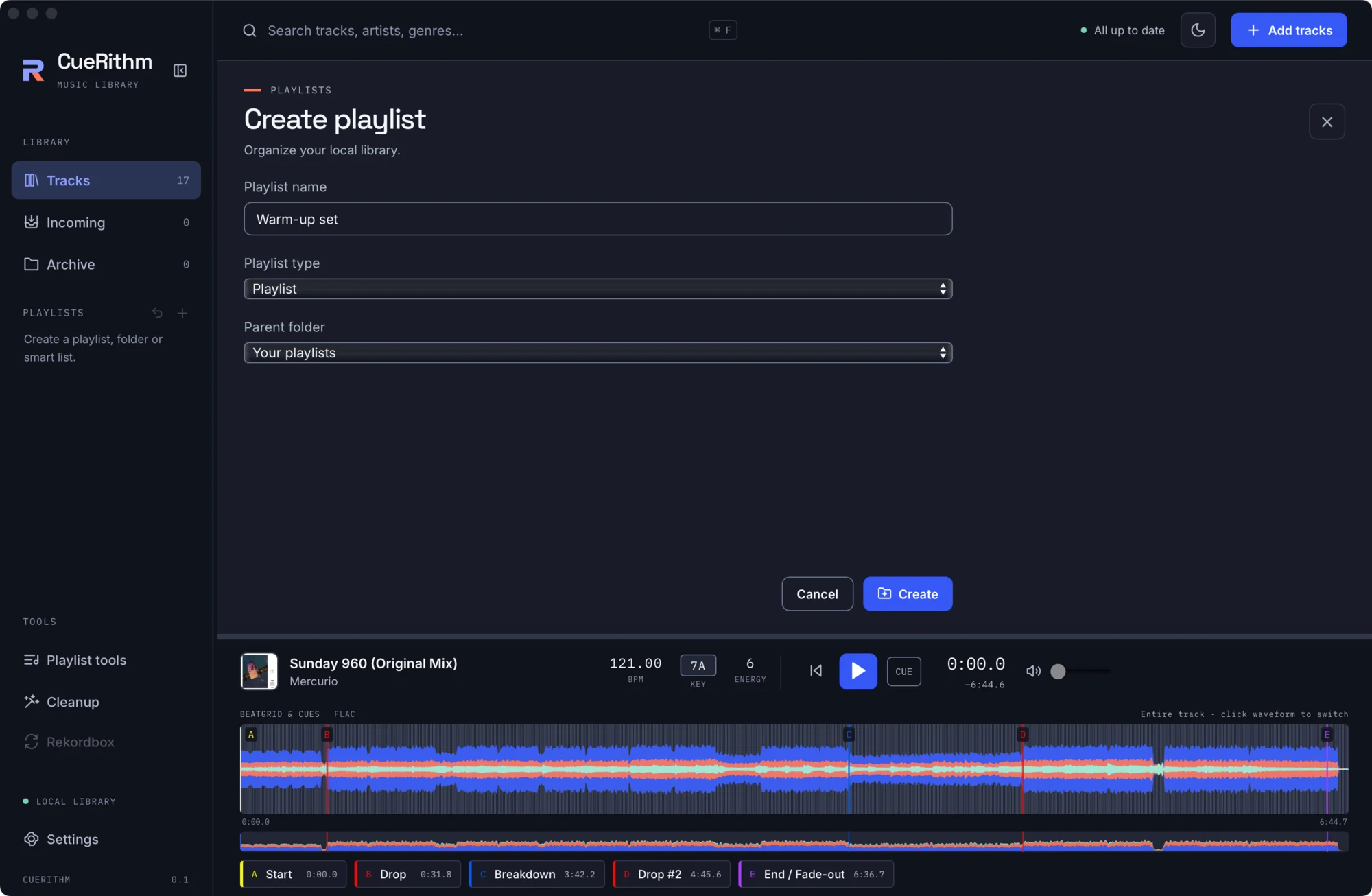
The new playlist opens empty.
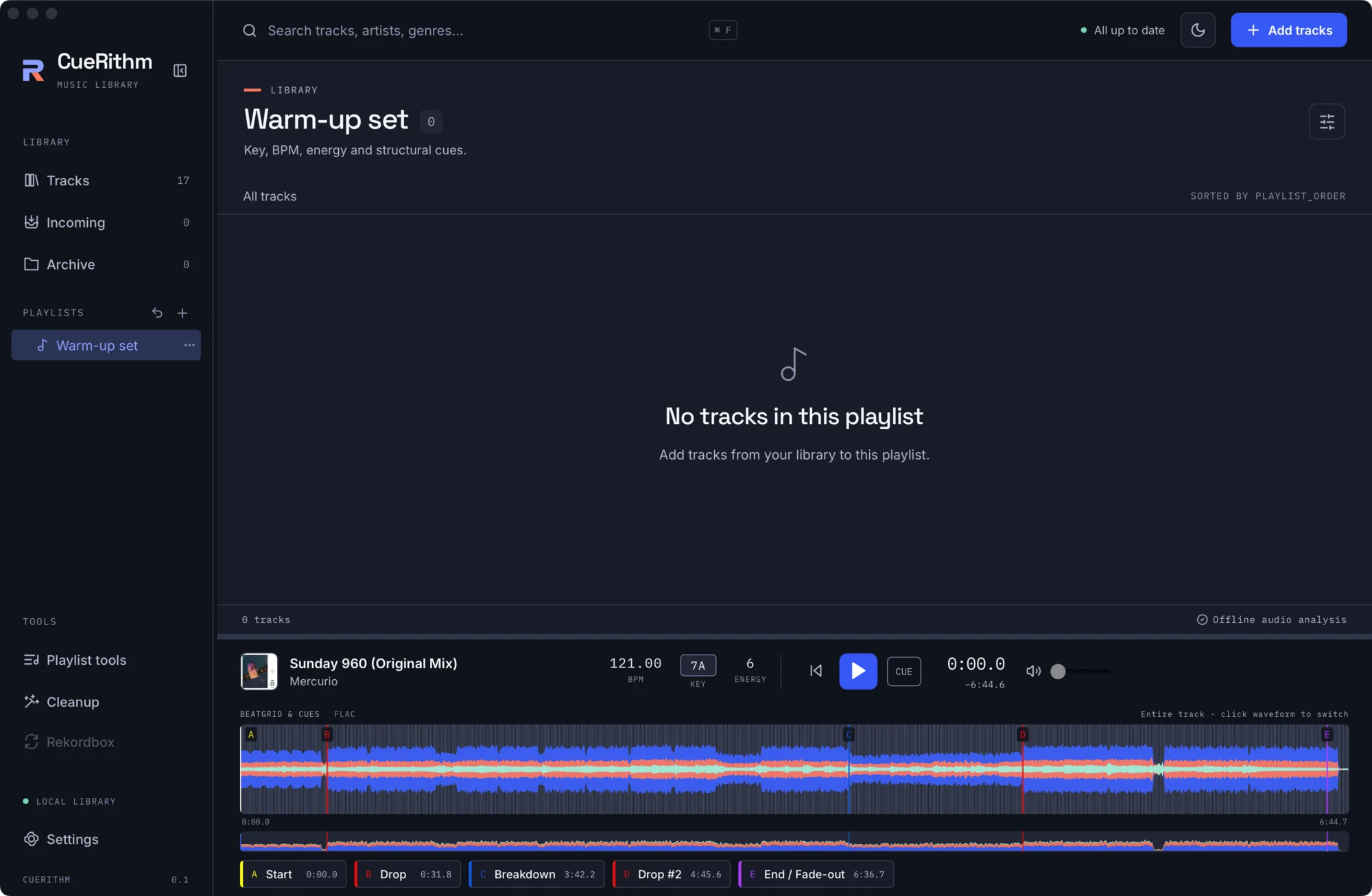
2. Add tracks
There are two ways.
- Drag: select one or more tracks and drag them onto the playlist in the sidebar. Only ordinary playlists accept tracks. Folders and smart playlists do not.
- Toolbar: select tracks, open the Choose playlist menu, pick the playlist and press Add to playlist.
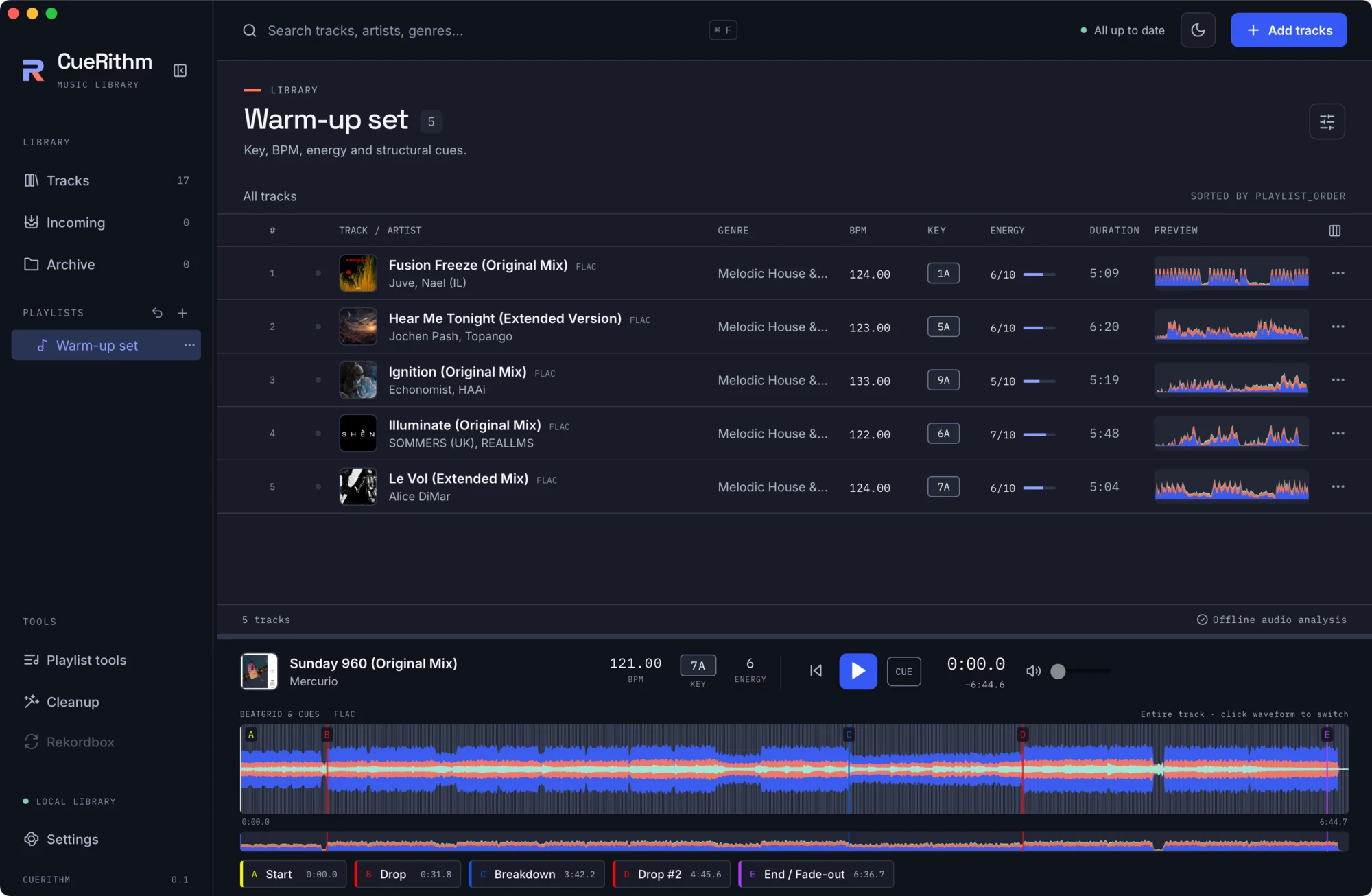
A track appears at most once in a playlist.
3. Reorder
When a playlist is shown in manual order, select tracks and use the up and down arrows beside Order to move them one place. You can also drag tracks onto another row to insert them before it. If you have sorted by a column, press Manual order first.
4. Make a folder
Create another item and set Playlist type to Folder. Folders can contain playlists, smart playlists and other folders. Drag a playlist onto a folder to put it inside, or use Move to folder… in the playlist's menu.
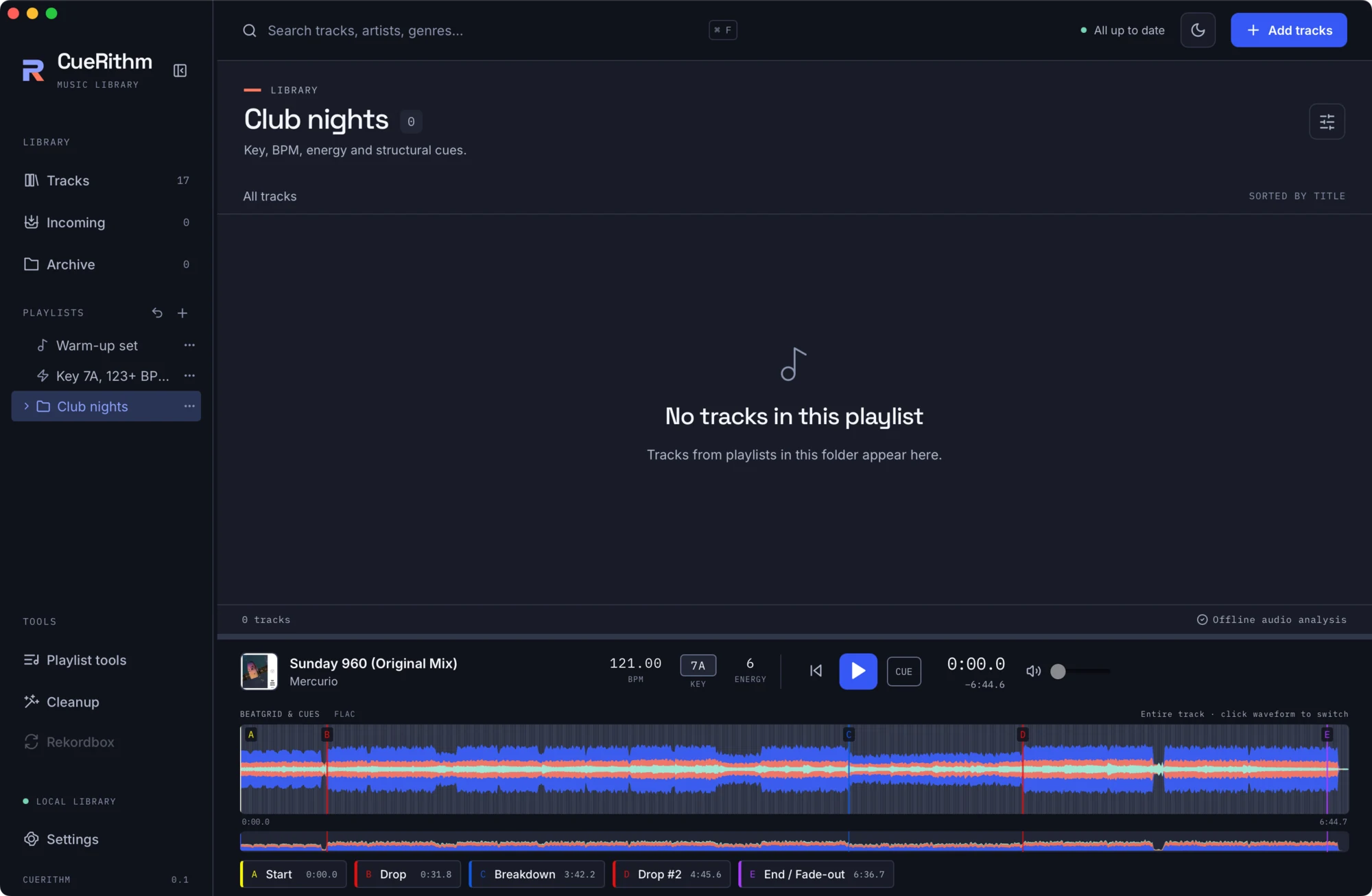
Opening a folder shows the tracks of every playlist inside it, each track listed once.
5. The playlist menu
Each playlist has a ⋯ menu.
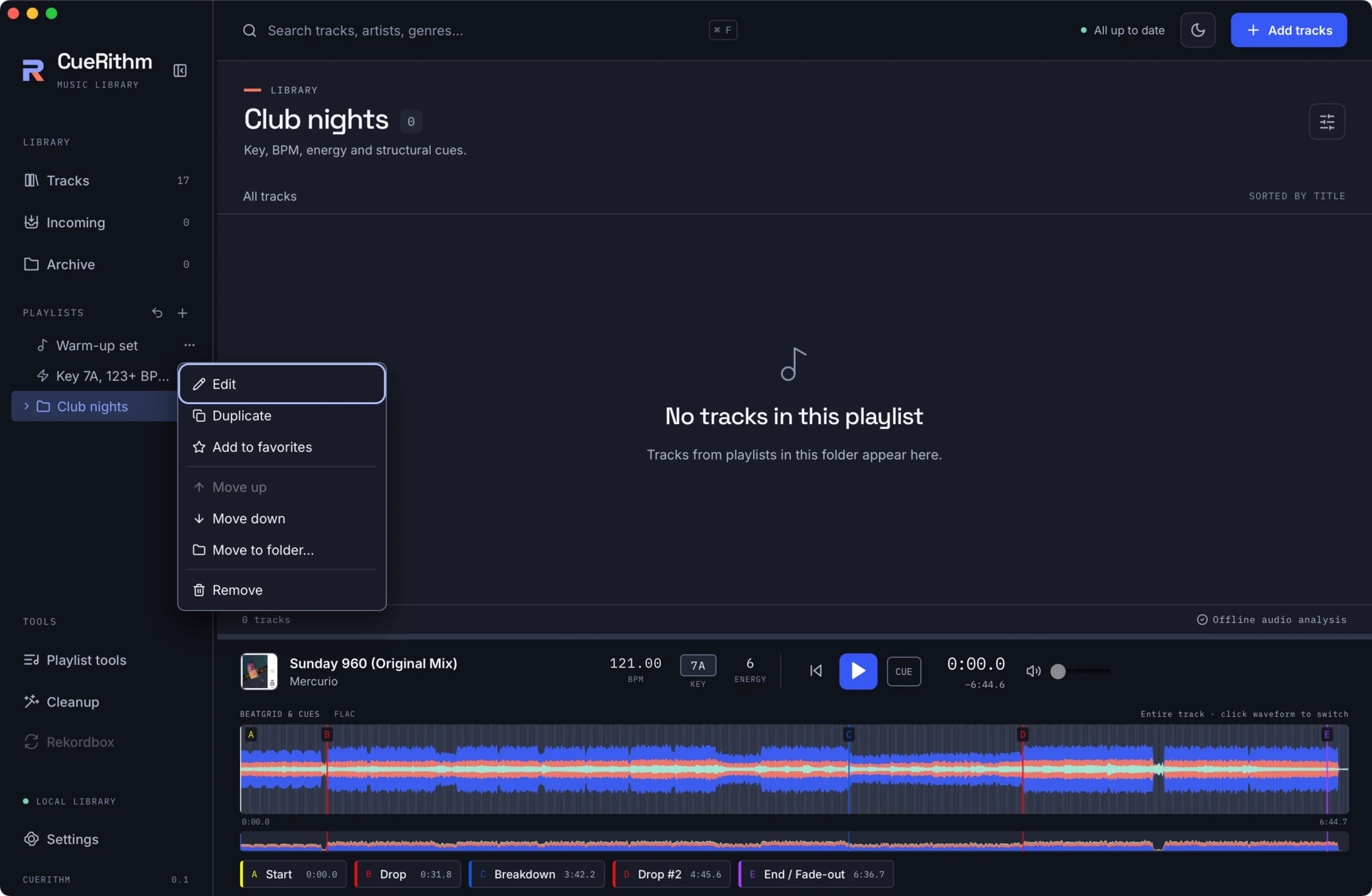
Remove is gentle: the playlist moves to a Removed playlists list in the sidebar, where Restore brings it and its contents back. Undo last playlist change (the arrow at the top of the Playlists section) reverses your latest edit, including a tool or generator run.
What just happened
Playlist membership is stored by track identity, not by file path, in the library database. Each edit is a checked transaction, so a stale window cannot overwrite a newer change. See The library database and Playlists, folders and favourites.