Playlists, folders and favourites
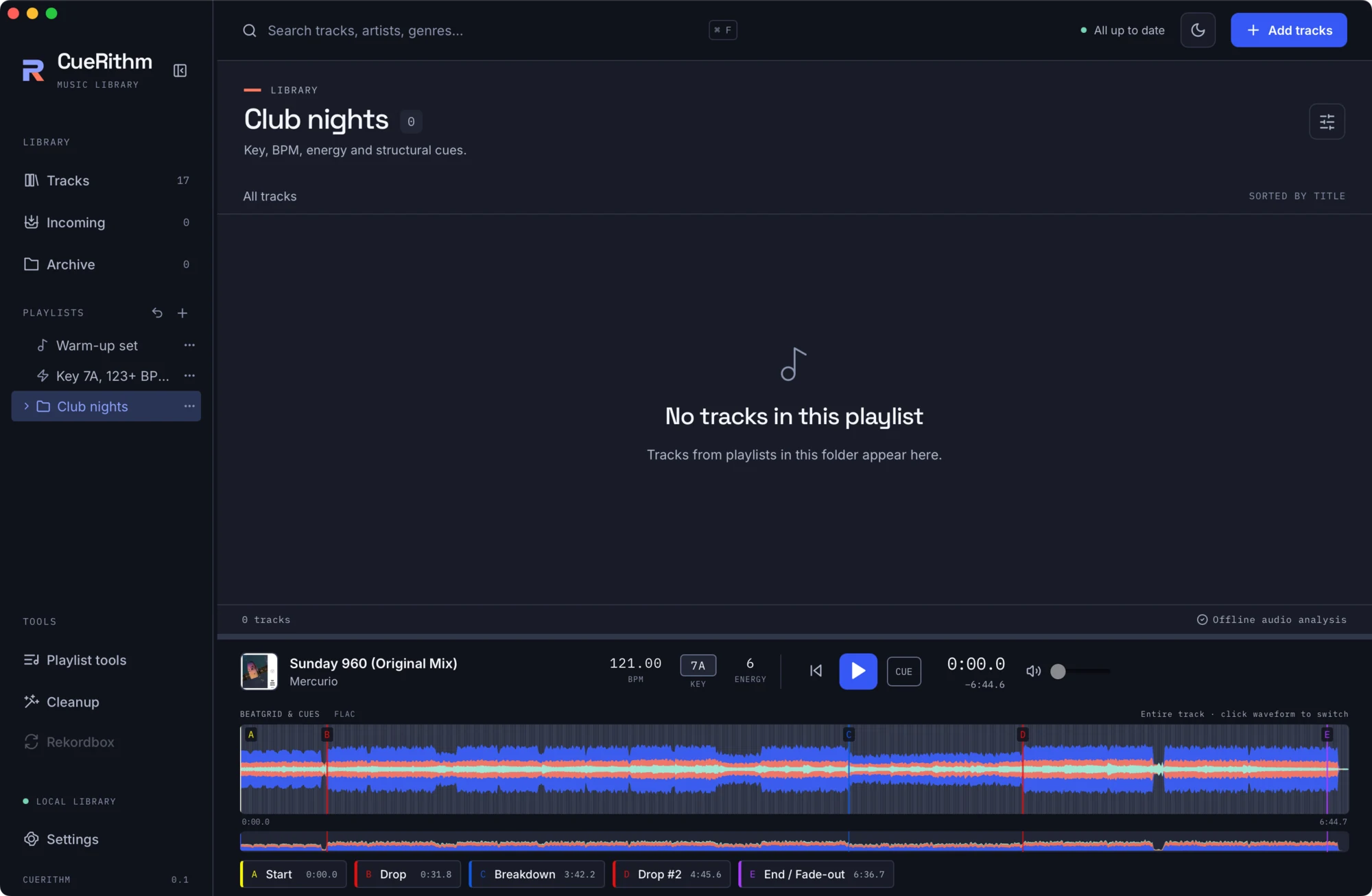
Item types
| Type | Icon | What it holds |
|---|---|---|
| Playlist | music note | Tracks you add by hand, in an order you control. |
| Folder | folder | Playlists, smart playlists and other folders. |
| Smart playlist | lightning bolt | Tracks chosen by rules. A dot beside it means it is not currently up to date. |
Each item has a stable identity, a position among its siblings, and, if you favourite it, a separate position in the favourites list. Playlists are part of the library. Audio files are never changed or deleted by anything you do with playlists.
Creating
Click + (Create playlist). If a folder is selected the new item is created inside it. The editor has Playlist name (up to 255 characters), Playlist type and Parent folder (Your playlists means the top level). For a smart playlist it adds the rule editor, a Preview matches button and the note Calendar dates use
Automatic Smart Playlists
Open Settings → Smart Playlists to opt in to automatic lists by Artist, BPM, release date, Genre or Key, then press Save Smart Playlist settings. All five options are off by default.
CueRithm creates the selected categories under Automatic Smart Playlists and expands them as prepared tracks arrive. Artists and remixers get individual lists; BPM supports up to ten configured ranges; dates create year/month folders with all-tracks, Warm-Up, Dancefloor and Anthems lists. Key creates 24 Camelot lists containing compatible tracks. See Smart Playlist settings for boundaries and metadata requirements.
Names and folder positions can be changed. Enabled categories maintain their generated rules; Duplicate a list before customizing its conditions. Turning an option off keeps existing live lists. Removing a generated list suppresses its automatic identity until it is restored.
The playlist menu
Each row has a ⋯ menu:
| Item | Effect |
|---|---|
| Edit | Change name, parent or (for smart playlists) rules. The type is fixed. |
| Duplicate | Recursive copy with new identities. Rule references are preserved. |
| Add to favorites / Remove from favorites | Toggle the favourite star. |
| Move favorite up / down | Reorder favourites (only for favourites). |
| Move up / Move down | Reorder among siblings. |
| Move to folder… | Pick a Destination folder. Appended at the end. |
| Remove | Soft delete. See below. |
Removing and restoring
Remove hides the item and its members, but keeps them. A collapsible Removed playlists list in the sidebar explains Restore playlists and their contents. Audio files stay in your library. Press Restore on a row to bring it back. Undo last playlist change reverses your most recent edit and refuses if a newer edit conflicts.
Drag and drop
Dragging uses CueRithm's own pointer handling and starts after a short movement.
- Tracks onto a playlist adds them. Folders and smart playlists do not accept tracks.
- Tracks onto a row inside a manually ordered playlist inserts them before that row.
- A playlist onto a folder makes it the last child of that folder.
- A playlist onto another playlist inserts it before that playlist as a sibling.
- A playlist onto Move to top level, or the PLAYLISTS heading, moves it to the top level.
- A folder cannot be dropped into itself or its descendants.
- Esc cancels a drag.
The membership toolbar
Shown when tracks are selected, or when an ordinary playlist is not in manual order.
- Choose playlist (ordinary playlists only) and Add to playlist.
- Remove from playlist when you are inside an ordinary playlist.
- In manual order with a selection, Order arrows move the selected tracks one place; otherwise a Manual order button returns to manual order.
Archived and incoming tracks
Ordinary playlists keep archived tracks' membership but hide them while archived. Incoming tracks never appear in playlists until prepared. Folders show the de-duplicated tracks of their descendants, in tree order.
No import or export
CueRithm has no playlist import or export, and no M3U or XML. Playlists live in the library. See Not available yet.