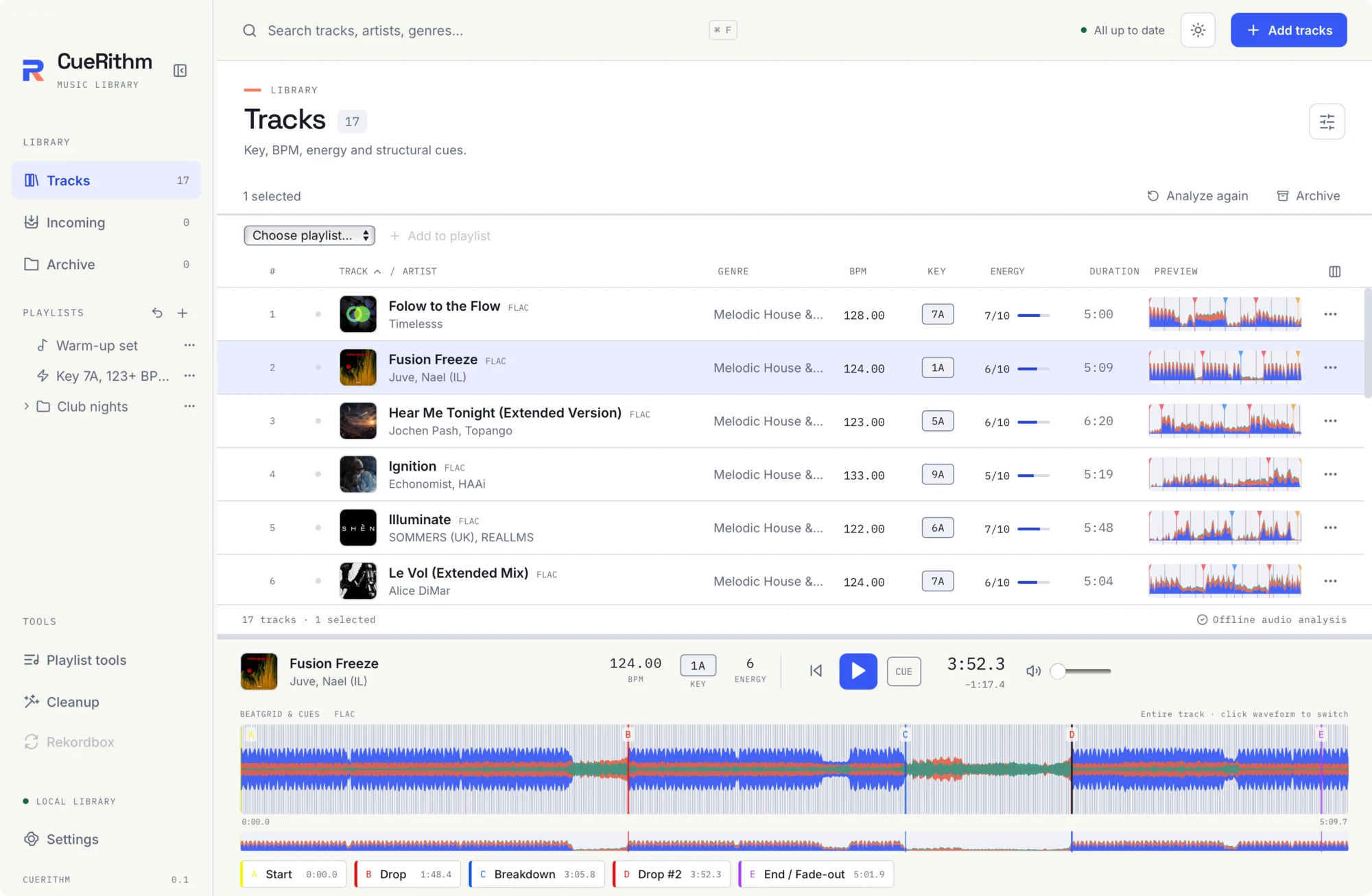
The main window
CueRithm has one window with four regions: a sidebar on the left, a header across the top, the main area (a track table or a tool) and a player that stays at the bottom.
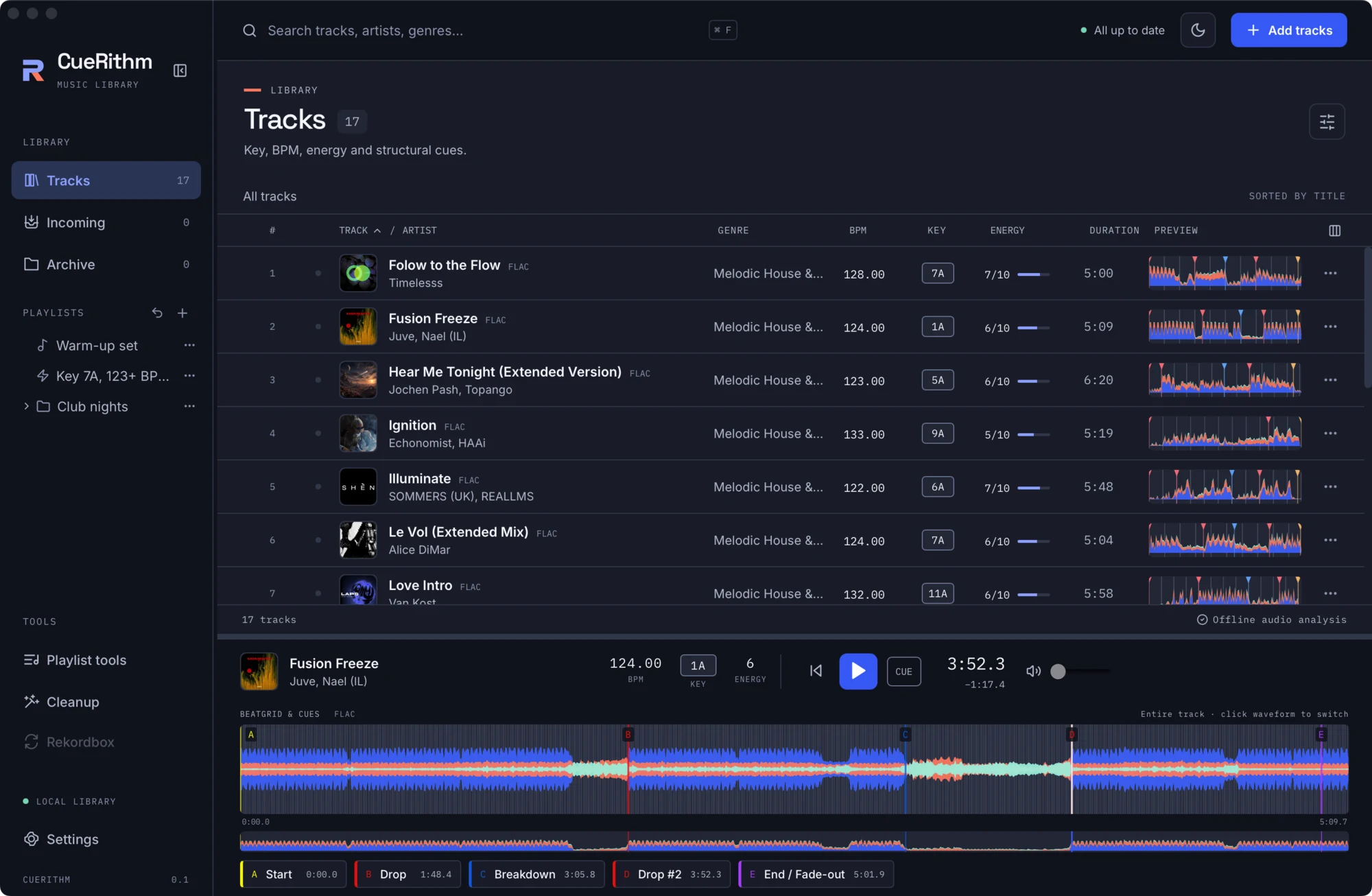
The sidebar
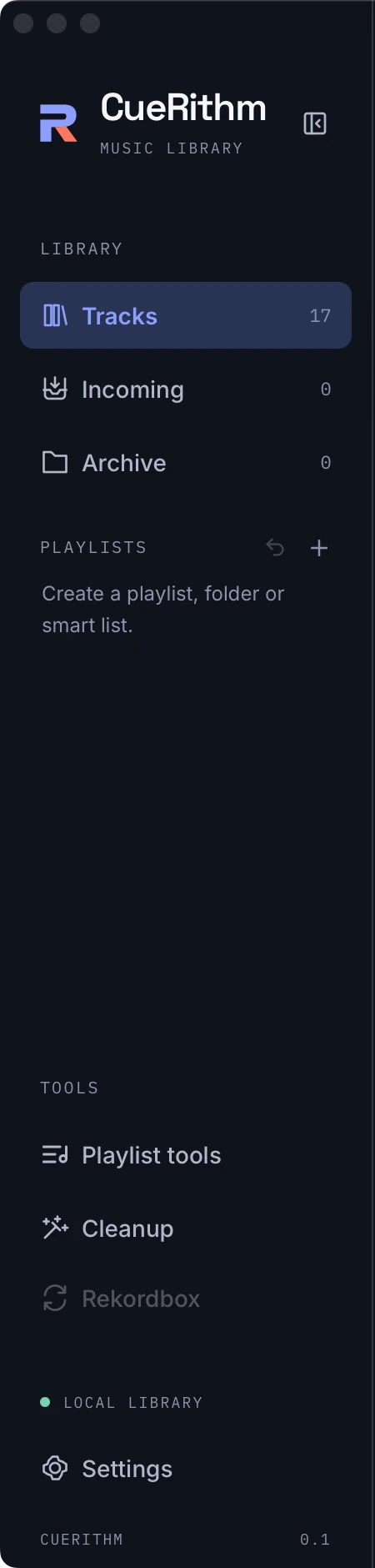
- Library
- Tracks: every prepared, non-archived track.
- Incoming: tracks being prepared, or waiting for attention.
- Archive: tracks you set aside. They keep their analysis and cues.
- Playlists: your playlists, folders and smart playlists, with Create playlist and Undo last playlist change.
- Tools: Playlist tools and Cleanup. Rekordbox is shown but disabled, because direct sync is not available in this build.
- Settings at the bottom, with the version label.
The numbers beside Tracks, Incoming and Archive are live counts.
Press Cmd+B (or Ctrl+B) to collapse the sidebar to an icon rail. The rail expands again while the pointer or keyboard focus is on it.
The header
- Search (Cmd+F): filters the current view by title, artist and genre. It is a case-insensitive "contains" match.
- Status: All up to date, Preparing N tracks with a spinner, or N need attention.
- Colour theme button: cycles System, Light and Dark.
- Add tracks: opens the file picker and queues your choice into Incoming.
The track table
The table lists tracks with artwork, title, artist, genre, BPM, key, energy, duration and a mini waveform with cue markers. Click a row to select it. Selecting shows a toolbar with Analyze again, Archive and an Add to playlist control.

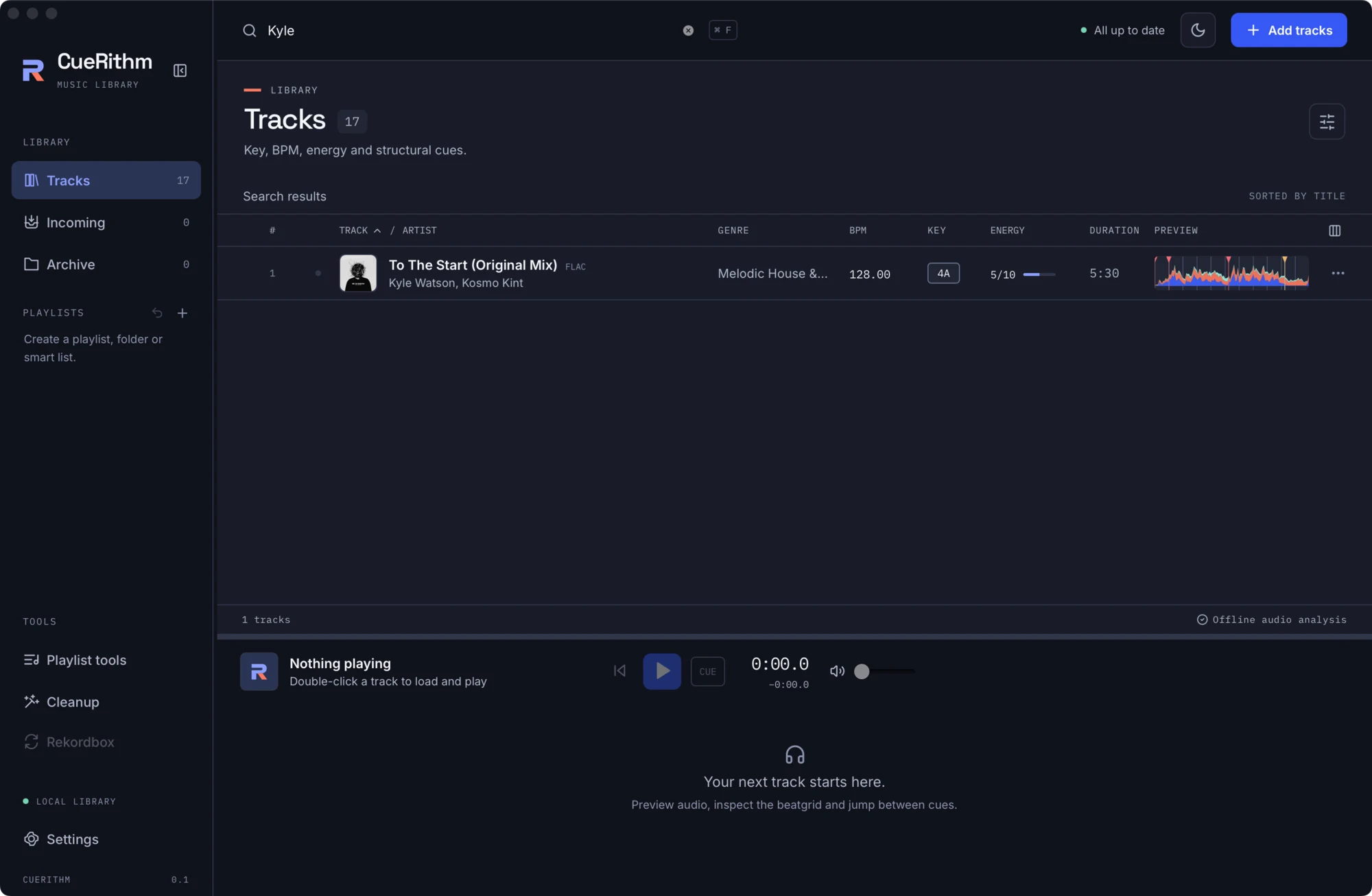
Read more in The track table.
The player
The player is always visible. It shows the loaded track, its BPM, key and energy, transport controls, a detailed waveform with beat lines and cue markers, a small overview, and one button per cue.

Read more in Player, waveform and cues.
Light and dark
CueRithm follows your system theme by default. Use the header button to pick Light or Dark.